

To be compliant with the new ADA Title II rules effective April 24, 2027, municipalities and state governments must ensure every fillable form in PDFs have accessible names, roles, and values.
Because residents apply for permits, pay fees, and access public services using digital forms online, they must meet accessibility standards under Title II of the ADA. When those forms are designed with accessibility in mind, every resident, regardless of ability, can complete them independently using assistive technology.
This 6-step guide helps you ensure every field in your PDFs is labeled correctly, announced clearly by assistive technology, and keeps you compliant with the new ADA Title II compliance regulations.
Permit applications and other forms are difficult for ADA compliance. Within 48 hours, our US-based certified experts return remediated complex forms on-demand.
6 Key Steps to Accessible Form Fields in PDFs Using Adobe Acrobat Pro
-
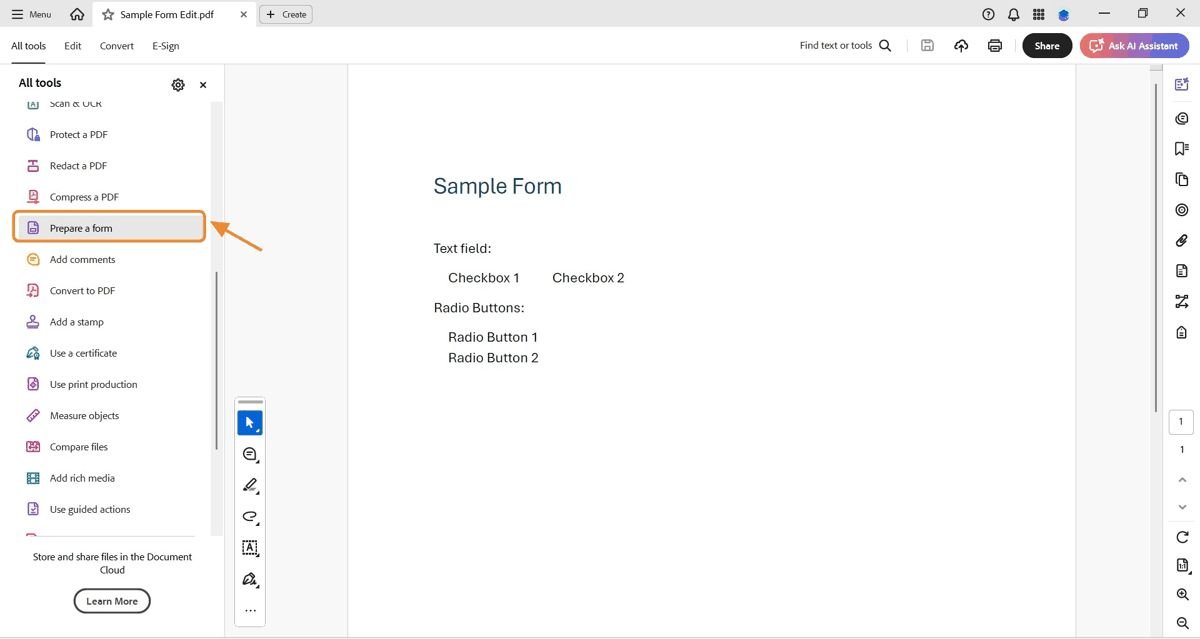
Open the PDF and Launch Prepare Form
Go to Tools and select Prepare Form. Adobe Pro will automatically detect your form fields.
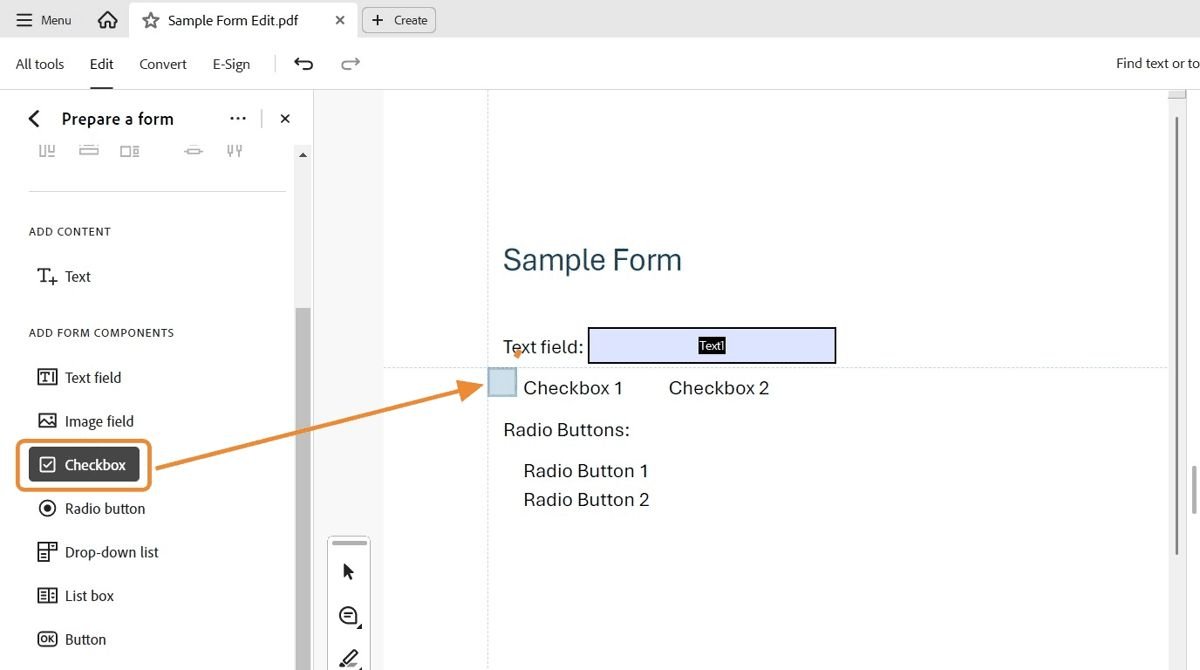
Review each form field manually. Detection isn’t perfect, so buttons and dropdowns may need to be corrected.
-
Add Descriptive Tooltips to Each Form Field
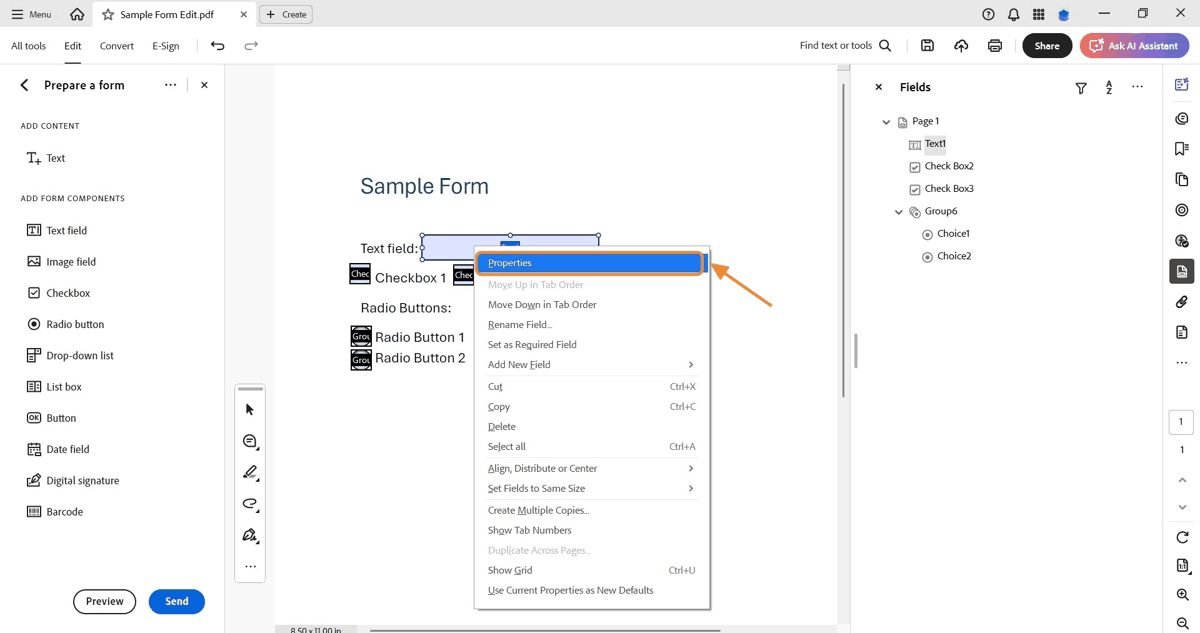
Right-click on any form field. Select Properties > General > Tooltip.
The tooltip is the label screen readers announce to users when navigating the form.
-
Use Clear, Unique Field Names
In the Fields panel, give each field a unique name that reflects its purpose (e.g., “first_name,” “dob,” “address_line_1”).
Avoid duplicate names. When two fields share the same name, assistive technology users will face barriers.
-
Group Related Fields and Set Required/Format Properties
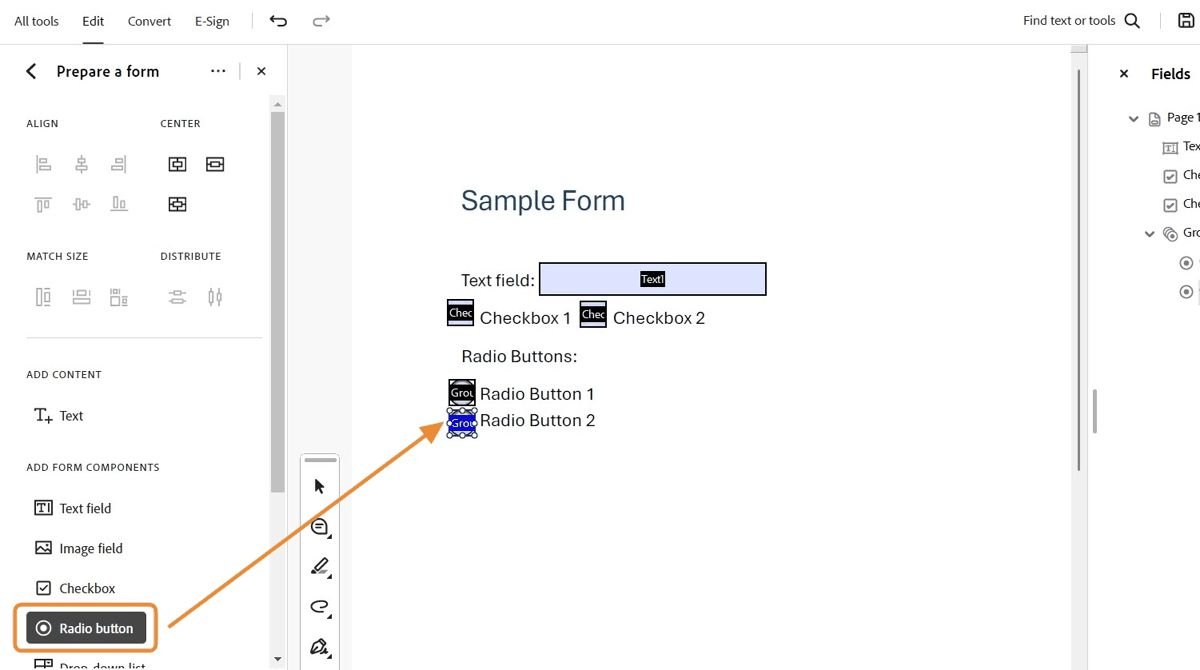
Make sure to group related fields—such as first, middle, and last name—under one logical section for easier screen-reader navigation.
If a field is required, check the “Required” box in Properties > General.
When a specific format is required, provide clear instructions for the correct format.
- “Date (MM/DD/YYYY)”
- “Phone (###-###-####)”
These simple instructions give confidence to users with disabilities, enabling them to input the desired information correctly the first time.
-
Verify Keyboard Navigation
In the Prepare Form tool, go to More > Set Tab Order.
You want to ensure that focus starts with the first logical field and proceeds sequentially.
Keyboard-only navigation is critical and required for Title II compliance. This ensures residents who cannot use a mouse due to a physical disability are able to read, complete, and submit forms independently.
-
Test with a Screen Reader
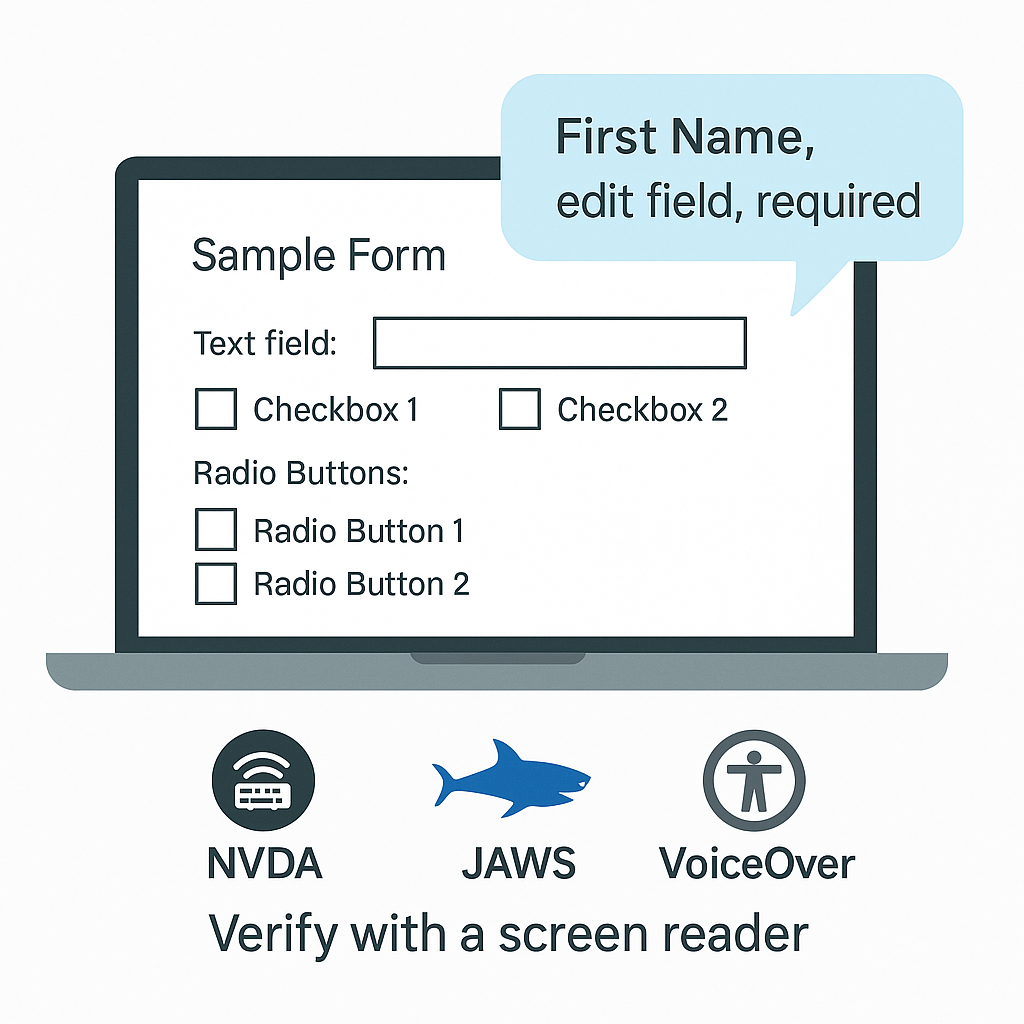
Validate you’ve made your PDF accessible and Title II compliant by manually testing with either NVDA, JAWS, or VoiceOver.
- Confirm every field is announced with its label.
- Listen for “required” or form field formatting prompts when and where applicable.
- Verify error messages or field instructions are programmatically linked.
Also confirm the logical reading order matches the keyboard tab sequence you set in Step 5, so grouped fields (e.g., name and address blocks) are announced in the intended, sequential order.
Using NVDA, JAWS, and VoiceOver to test form field accessibility is relatively easy.
Simply tab through the form and listen for the programmatic labels and instructions you’ve given each form field. If there’s an error, such as the programmatic label doesn’t match the visible label, make the correction using the steps above.


How AccessAbility Officer Solves PDF Accessibility and Title II Compliance for You
Whether it’s PDF accessibility or web accessibility, there are 2 paths for municipalities and state agencies to take.
- Nail down the fundamentals and best-practices. Then update your processes, systems and technology to scale PDF accessibility internally.
Nail down your accessibility fundamentals and best-practices with PDF Accessibility Simplified: Phase 1 Accessibility Fundamentals - Take Title II ADA Compliance off your plate. With ADA, legal, and technical experts on staff, AccessAbility Officer is the trusted partner for the same Title II compliance problems and deadlines faced by other government agencies just like you.
Hand off the forms instead. Permit applications, benefit forms, and other fillable PDFs go to US-based certified experts who tag, test, and return them, usually within 24 to 48 hours. You pay per file, not per seat.
Get your first accessible PDF free

AccessAbility Officer
Ability Is Our Middle Name